Showing posts with label Ubuntu. Show all posts

How to Install Windows 8 theme on Ubuntu 10.10/11.04/11.10


Download Free Windows 8 Transformation pack for Ubuntu 11.04/11.10/10.10


Windows 8 is not yet officially released,but it'd Developer version is released for testing.It is better than Ubuntu 11.04/11.10.Lot of good features are available.New Desktop ,New Mosaic theme....and more...

Here we discussing How to install Windows 8/Windows 7 theme on Ubuntu


1.First Download this File

win7-setup.sh

2.Download it,make sure that it is in Downloads Folder

Example:Downloads/win7-setup.sh

3.Open Terminal

cd Downloads/


Example:sibin@sibin-P4I45Gx-PE:~$ cd Downloads/

enter

./win7-setup.sh


sibin@sibin-P4I45Gx-PE:~/Downloads$ ./win7-setup.sh


4."The Win theme installation will start now "

Click on OK

Click on "Yes/OK"....It automatically Download all files

After it

5.Check Downloads folder

Make sure that win7.tar.gz and win7-uninstall.tar.gz are exit


6.Open Terminal

cd Downloads/


Enter

tar -zxvf win7.tar.gz


7.Open Downloads folder

select win7.tar.gz file .Right click (Mouse). Extract it

8.Open Win7 Folder .Open Win7/Debs

install gnomenu_all.deb ,gtk2-engine-oria_i386.deb,talika_i386.deb (amd version also available ).You must install these file (You need Internet connection)

Then return to Win7 folder

Find setup-win7-theme.sh file

9.Open Terminal

cd Downloads/win7


Enter

./setup-win7-theme.sh


10.You will get error messages .

Extract win7-cursor.tar.gz ,win7-theme.tar.gz .....7 files are available.Extract all files .After extraction .copy these files and paste to

(Open My computer)Filesystem-->usr/local/etc


and Paste all files

Repeat step 9.

11.Goto Desktop -->Right click (Mouse)-->Theme

Install-->(Open Downloads Folder)-->win7-->Install all 7 files
(win7-cursor.tar.gz,win7-icons.tar.gz,win7-fonts.tar.gz,win7-gtk.tar,gz etc...all 7 files)

You will get lot off error messages...ignore it


12.Theme-->Get more theme online -->From theme page -->Windows Borders

Download

MCity-VistaBasic.tar.gz

and install it.(I think you know "How to install a theme")

Desktop-->Right click (Mouse)-->Theme-->Install-->Select files

13.Your Start menu replaced with Ubuntu icon/similar button.To get Windows 7 button-Select start menu (Gnomenu)-->Right click -->Properties->

Gno menu settings

Theme-->Button selection-->Install (Downloads/win7/gnomenu/button)

select win7.tar.gz and install it

Menu selection-->Select Vista (Nearer to uninstall )

14.Download Windows7 wallpaper and use it


After all this work you can restart your OS.If there is any problem ,please ask me...I will Help.Detailed Video available on Youtube.

Videos How to Install Windows 8 theme on Ubuntu 10.10/11.04/11.10


 Source: http://www.7chip.com/2011/10/how-to-install-windows-8-theme-on.html

Windows 8 theme, Ubuntu 10.10/11.10/11.04,Windows 8 transformation for Ubuntu,windows ubuntu theme, download ubuntu theme, install ubuntu theme
»»  READMORE...

Download Ubuntu 11.10 Mac Theme (Macbuntu)

Ubuntu 11.10 Mac Theme (Macbuntu) is the favorite themes for Ubuntu. So many user use this theme besauce Mac is one of the beautiful OS in the world .Desktop,Wallpaper's,Icon Everything is amazing.

If you want install theme only,use this link


Mac OS X Transformation Pack Macbuntu theme - Compiz Desktop and Rotate Cube

Description Macbuntu :

Mac OS X Transformation Pack. Macbuntu is an open-source program, designed to transform Linux’s appearance and layout into a Mac OS X environment. Although Macbuntu is dedicated to Ubuntu Linux OS, it could be used in other OS based on Debian/GTK


Features Macbuntu :

* Attention: Script significantly changes the desktop.
* Attention: Not compatible with Ubuntu Netbook Edition
* Attention: The Global Menu does not current work correctly for all applications. This is a known issue.
* Paw-OSX and Paw-Ubuntu Plymouth themes
* Macbuntu sound theme
* Macbuntu GTK theme based on GTK Leopard
* Macbuntu-Icons based on Mac4Lin and Faenza Icons
* Macbuntu-Cursors based on Shere Khan X
* Mac OS X backgrounds and fonts
* Compiz Extras, Global Menu, Docky, Ubuntu-Tweak
* Preconf for login screen, metacity, compiz, window theme, backgrounds, cursors, icons, docky and top panel

Compiz Shift Switcher mac ubuntu theme 11

Macbuntu Compiz Scale like Mac OS X's Expose All Windows


Download Macbuntu theme File (Size 40 MB,tar.gz format)

ubuntu 11.10 mac theme,macbuntu 11.10,mac theme for ubuntu 11.10,mac theme ubuntu 11.10, download macbuntu, download ubuntu theme, best ubuntu theme, free ubuntu theme,Ubuntu 11.10, ubuntu 11.10 theme,ubuntu theme,gnome3,Download Free Ubuntu 11.10,Macbuntu 11.10 ,Mac theme for Ubuntu,How to install Mac apps in ubuntu ,Free Linux games,Oneiric Ocelot
»»  READMORE...

Download Firefox 9.0 Beta for Linux

A redesign of Mozilla's browser component
Firefox 9.0 the next gen after Firefox 8


Mozilla Firefox project is a redesign of Mozilla's browser component, written using the XUL user interface language and designed to be cross-platform.

Firefox browser is a fast, small and very easy to use browser that offers many advantages over other web browsers, such as the ability to block pop-up windows and the tabbed browsing experience
.
Download, Mozilla Firefox 8,Linux,ubuntu, Firefox 8, Firefox 8  install, download Firefox 8,Celebrating 7 years of Firefox
Firefox 9.0, which was made available for download on the official FTP site of the Mozilla company, yesterday morning, includes some interesting new features.

Highlights of Mozilla Firefox 9.0 Beta:
· Added Type Inference, radically improving the JavaScript performance;
· Do Not Track status can now be queried via JavaScript;
· font-stretch support was added;
· text-overflow support was improved;
· HTML5, CSS, and MathML support was improved;
· Various stability issues were fixed.

What's New in This Release:
· Add-ons installed by third party programs are now disabled by default
· Added a one-time add-on selection dialog to manage previously installed add-ons
· Added Twitter to the search bar
· Added a preference to load tabs on demand, improving start-up time when windows are restored
· Improved tab animations when moving, reordering, or detaching tabs
· Improved performance and memory handling when using and elements
· Added CORS support for cross-domain textures in WebGL
· Added support for HTML5 context menus
· Added support for insertAdjacentHTML
· Improved CSS hyphen support for many languages
· Improved WebSocket support
· Fixed several stability issues

Download Firefox 9.0 Beta for Linux binaries and sources right now. Also, don't forget to visit our always up-to-date Firefox Extensions section for the latest add-ons!

download Firefox 9.0,Firefox 9.0,Firefox 9 Beta,Linux,Ubuntu 11.10,firefox 8 lucid,firefox 8 ubuntu
»»  READMORE...

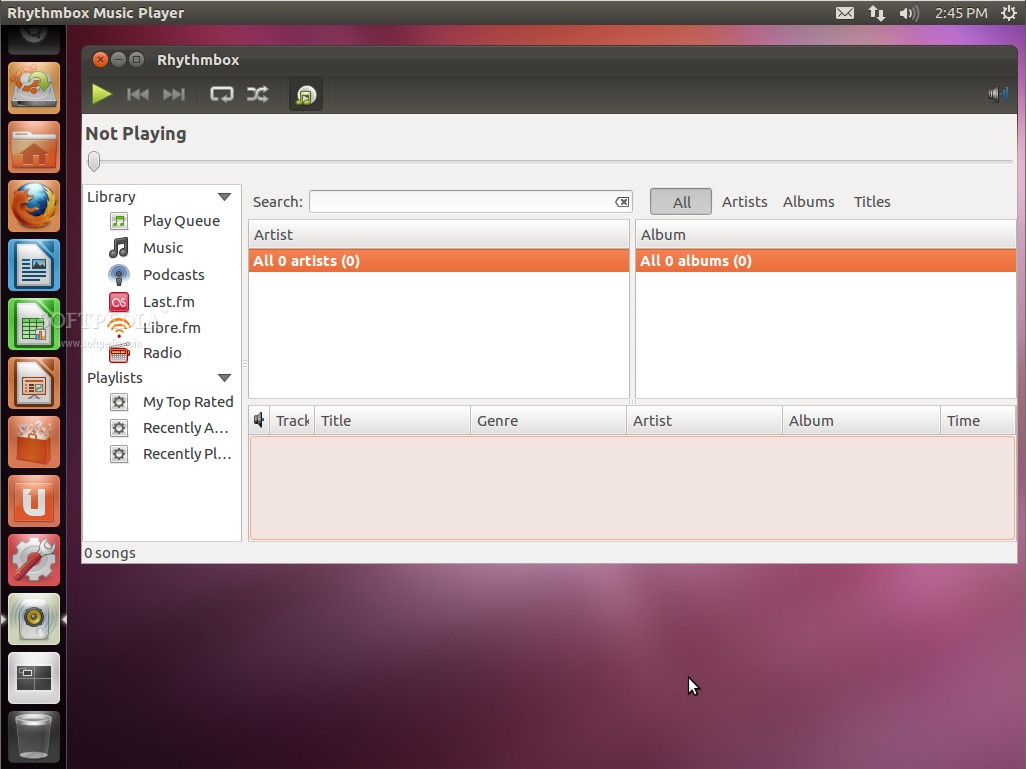
Rhythmbox or Banshee in Ubuntu 12.04?

During the Ubuntu Developer Summit for Ubuntu 12.04 LTS (Precise Pangolin) the developers discussed the possibility of returning the Rhythmbox music player as the default audio management app for Ubuntu.

Jason Warner from Canonical what to know user's opinion in this matter, so write here in a comment if you want Rhythmbox to replace Banshee in Ubuntu 12.04 LTS.


Image comment: Rhythmbox music player in Ubuntu 12.04 LTS

I have to admit that Rhythmbox is my favorite music player in Ubuntu and I've replaced Banshee with it in Ubuntu 11.10 (Oneiric Ocelot).

Banshee has a lot of problems if you ask me. From the fact that it depends on Mono, and continuing with the time it takes to start and its overall stability issues.

Rhythmbox is light, it starts very fast, and it "just works". What do you think about Rhythmbox or Banshee? Which one should be the default music player in Ubuntu? Please post comments below!


 http://news.softpedia.com/news/Do-You-Want-Rhythmbox-or-Banshee-in-Ubuntu-12-04-233449.shtml 

Ubuntu 12.04,Rhythmbox,Banshee,Precise Pangolin,Canonical
»»  READMORE...

How to install Mac theme on Ubuntu 11.10 (Oneiric Ocelot)

How to install Mac theme (Transformation pack) on Ubuntu 11.10

Mac Ubuntu 11.10 for ubuntu

Mac is one of the beautiful OS in the world .Desktop,Wallpaper's,Icon Everything is amazing.This post will help to install Mac theme in your Ubuntu versions .

If you want install theme only,use this link

and also do next steps to get full Macubuntu effect

-Everything look like mac
-Folder
-icons
-wallpaper
-sound
-windows
all

Features Macbuntu :


* Attention: Script significantly changes the desktop.
* Attention: Not compatible with Ubuntu Netbook Edition
* Attention: The Global Menu does not current work correctly for all applications. This is a known issue.
* Paw-OSX and Paw-Ubuntu Plymouth themes
* Macbuntu sound theme
* Macbuntu GTK theme based on GTK Leopard
* Macbuntu-Icons based on Mac4Lin and Faenza Icons
* Macbuntu-Cursors based on Shere Khan X
* Mac OS X backgrounds and fonts
* Compiz Extras, Global Menu, Docky, Ubuntu-Tweak
* Preconf for login screen, metacity, compiz, window theme, backgrounds, cursors, icons, docky and top panel

1.Download theme File (Size 40 MB,tar.gz format)

2.Applications-->Accessories-->Terminal (For Ubuntu 10.10)

Click on Ubuntu icon(From Left side bar,Click on 4 vertical bars-right to music button)-->Filter -->Accessories -->Terminal (For Ubuntu 11.04 and 11.10)

3.Open Terminal

/*Ensure that "Macbuntu-10.10.tar.gz" file in your Downloads folder*/

code-->


cd ~/Downloads
tar zxvf Macbuntu-10.10.tar.gz
cd Macbuntu-10.10


/*Else just Extract Macbuntu10.10 tar.gz .Open Macbuntu 10.10 ,Find install.sh*/

Edit install.sh file

gedit install.sh


Edit File


chk_system()
{
echo “”
echo “Checking Ubuntu version…”
s=`cat /etc/issue | grep -i “$UBUNTU”`
if [ ! -n "$s" ]; then
echo “Failed. System not supported, script will end here”
echo “To ignore their compatibility with current OS try ./install.sh force”
echo “Exiting…”
exit 1;
fi
echo “Passed”
}


Change above code to

chk_system()
{
echo “Passed”
}


Save this file ,then run your file

./install.sh

source: http://www.7chip.com/2011/10/how-to-install-mac-theme-on-ubuntu-1110.html

Enjoy with your Ubuntu 11.10 with Macbuntu 11.10


Mac OS X Transformation Pack Macbuntu theme - Compiz Desktop and Rotate Cube


Ubuntu 11.10, ubuntu 11.10 theme,ubuntu theme,gnome3,Download Free Ubuntu 11.10,Macbuntu 11.10 ,Mac theme for Ubuntu,How to install Mac apps in ubuntu ,Free Linux games,Oneiric Ocelot, ubuntu 11.10 mac theme,macbuntu 11.10,mac theme for ubuntu 11.10,mac theme ubuntu 11.10, download macbuntu, download ubuntu theme, best ubuntu theme, free ubuntu theme
»»  READMORE...

How to Install Mobile Broadband iDownload

After installing Ubuntu 11.10 (Oneiric Ocelot) you will see many new features in it, like search panel ha changed so as the Ubuntu Software center.This all change is because of the change in the Unity.unity has improved a lot within these few week.Initially when it was come with Ubuntu 11.04 then may of us even me also not like it much, but as time passed and i use it i used to liking it.

If you are new to Ubuntu then don’t worry you do not have to bother about things happen in it.Because it is more likely as Microsoft Windows.In Ubuntu 11.10 you can use both Command line as well as Graphics user interface.So you can do the things in your ways.After installing Ubuntu 11.

10 you must want to install Mobile Broadband, so that you can use the Internet.So in this post i will tell you how you can install Mobile Broadband in Ubuntu 11.10.

Install Mobile Broadband in Ubuntu 11.10 (Oneiric Ocelot)

1.If you have not yet updated you Ubuntu after installing then first update it.You following command to update it.You will need to connect your computer with Internet Modem using wire.
sudo apt-get update
 
2.Open the Search panel from the Ubuntu icon present in top of the launcher.

3.Search for the Additional Driver in the search box.This will open a new window from there you just select “Broadcom STA wireless Driver” and click on Add.

4.Wait for some time until the installation gets complete.

5.You need to restart your system to activate and complete the installation.

6.Now go to the network connection icon present at the top panel and select your network name.

7.Give password and click on connect.This will establish the internet wifi connection or mobile connection.

»»  READMORE...

Best IM(instant messaging) tool for Ubuntu 10.10/11.04

Some of the best applications are made available in Ubuntu Software Center from where user can easily install it.The user has to go to the Ubuntu Software Center and search the application name in the search box, then click on install.

This will install all the packages with that application.In this post i will tell you about Best IM(instant messaging) tools for Ubuntu 10.10 (Oneiric Ocelot) /11.04.

Best IM tool for Ubuntu

1.Empathy
Empathy is an Instant messaging program that supports text, voice and  video chat.You can also do file transfers and inter-application communication over many different protocols, including: MSN, Google Talk, Facebook, Yahoo, Salut, Gadu-Gadu, Groupwise, ICQ and QQ.

You can all do these things with one application.Ubuntu comes with installed Empathy.I use Empathy for Video calls. Works great with full screen video.It has good audio and video quality. And it also has all the features required to do normal chatting and a lot more.

2.Pidgin


Pidgin is also one of the most used instant messengers.It is the best messenger i have ever used except for it’s lack of support for voice chat and video chat.It has support for virtually all the major IM networks, including; AIM, Bonjour, Facebook (XMPP), Gadu Gadu, Google Talk, GroupWise, ICQ, IRC, MSN, MXit, MySpaceIM, Napster, QQ, SILC, SIMPLE, SNPP, Sametime, XMPP,  Yahoo, Yahoo Japan and Zephyr.It is simple and fast, and block unwanted spam messages that usually comes from crappy yahoo.

You can install it by going to Ubuntu Software Center and search for Pidgin instant messenger
.Then you can install it from there.

When you will use Pidgin for first time it will ask for the account information, you give it and start chatting.

»»  READMORE...

How To Install LAMP Server on Ubuntu

LAMP is a software bundle of free and Open Source software Linux Operating System, Apache Server, MySQL database and PHP.LAMP (short form of Linux, Apache, http://www.fossapps.com/wp-admin/post-new.phpMySQL and PHP) is an Open Source web platform for developing web applications.It works same as WAMP(Windows Apache MySQL and PHP).

One advantage of using LAMP is the substantial flexibility for different database, web server, and scripting languages.

Popular substitutes for MySQL include Posgresql and SQLite. Python, Perl, and Ruby are also frequently used instead of PHP.In Ubuntu installing LAMP is very easy and you just have to do some simple steps.LAMP is used my most of the web developer who are using Ubuntu.

So in this post i will tell you how to install LAMP server on Ubuntu 10.04/10.10/11.04.

Instructions

1.Install Apache Server 2

Open the Ubuntu Synaptic Package Manager and search for Apache2 and select for install.Now click on apply to start the installation process.Wait for some time to complete the process.
For checking that whether Apache 2 is installed of not, Open the Browser and type – “http://localhost/” then you will see the following in your Browser.

2.Install PHP5

a) Open the Synaptic Package Manager and type PHP5 in the search box.Select it for installation and click on apply.This will starts the installation process.
b) Open the Terminal and type the following to get Root access.
sudo nautilus
This will open a window, you just go to “File System>>vsr>>www” and create one document file(by right clicking and selecting Create Document) of any name like “fun.php” and type the following-
 

c) Run the following command in the Terminal to Restart the Apache Server
sudo /etc/init.d/apache2 restart


d) Now again open the Browser and type-
http://localhost/fun.php
you will see the following in browser which shows that PHP is working.


3.Install MySQL and phpMyAdmin

Installing MySQL you need to install “mysql server” and “mysql client“, so search for both in Synaptic Package Manager and install it.You can also install “phpMyAdmin” by searching it in Synaptic Package Manager.

»»  READMORE...

Best CD/DVD Burner Software for Ubuntu 11.04/10.10


Ubuntu comes with a defaultly installed cd/dvd burning software Brasero Disc Burner.Many of us are using this dvd burner software but they are not satisfied and happy with this application.

Some times it works fine but then mostly it does not work properly.When you use Brasero for burning dvd it corrupt the dvd(loss of money). After burning dvd it show error but when you use other softwares it shows ok with that dvd.

So you left using Brasero for burning cd or dvd. Actually one of the good thing about Ubuntu is that, it provides us good software through Ubuntu Software Center.So if you feel that any software goes wrong or not good, you can choose variety of different softwares which can do your work.

So in this post will tell you about some of the best and alternative burner software for Ubuntu 11.04 and 10.10 (Oneiric Ocelot).

 1.K3B

K3b is a kde desktop environment application which also run on GNOME and Unity perfectly.This is one of the most powerful CD/DVD Burner for Ubuntu or any Linux version.It has nice interface and provides many add-ons.This is like Nero for Ubuntu and it is reliable, fast, simple to use with many options.

The only two options you are not going to find with K3B when compared with the famous Nero are, the ability to burn Bootable CD/DVDs, and the support for Blu-Ray burning for any purpose.If those features could be implemented in K3B then, this will become ideal Disc Burning software for Linux based Operating System.

For installing K3B go to the Ubuntu Software Center and search for K3B in the search box.Click on install which will starts the installation porcess.

2.AcetoneISO
AcetoneISO is more than just a cd or dvd burner software.It can be largely used for mounting virtual disk.AcetoneISO makes it possible to easily use various kinds of CD and DVD images on your computer as if they were burned to real CDs.

You can use the application to mount and manage CD and DVD images. Supported disc-image formats are ISO, BIN, NRG, MDF and IMG.It also allows you to D/L Youtube videos and extract the sound from them. Its an alternative of Daemon Tools used in Windows Operating System.

You can install it by going to the Ubuntu Software Center and search for the AcetoneISO in the search box.Now click on the install option available in the right.This will start the installation process, so wait for some time.Thats it !!

3.GnomeBaker
 

It is just like K3B but for GNOME desktop environment.It is much better than Brasero in all expect.Gnomebaker is an easy to use CD/DVD burner. Its current features include:
Data and audio CD burning
Multisession CDs
DVD formating
DVD data disk burning
On-the-fly data CD burning
Cue bin data CD writing

You can install it from Ubuntu Software Center and searching for GnomeBaker.

4.DeVeDe


DeVeDe is a software program to create video DVDs, suitables for home players, from any number of video files, in any of the formats supported by Mplayer.It allows user to create subtitles and even menus.Take your video files like mpeg files from a Cybershot camera,avi etc into the program.

 Then click forward to create an .iso file of your videos.Now burn that file to a blank dvd.
Now you can run your dvd in your DVD Player.

Just go to Ubuntu Software Center and searching for DeVeDe for installing it.

»»  READMORE...

How to Upgrade From Ubuntu 11.04 to 11.10 (Oneiric Ocelot)

 This post will give you solution to to Upgrade From Ubuntu 11.04 to 11.10 (Oneiric Ocelot)


Features of Ubuntu (Oneiric Ocelot)

1.As of now Firefox releases its version 5, Ubuntu 11.10 comes with this Firefox 5.
2.It comes with upgraded Linux Kernel 3.0-rc5 and gcc 4.6.1 compiler.
3.Mozilla Thunderbird will be the standard Email client for Oneiric Ocelot.
4.GNOME 3 is now the default desktop environment, with Unity on top of it.
5.Ubuntu 11.10 will comes with a backup tool called Deja Dup by default, which will allow users to easily backup and restore their important files.
6.In place of gdm, lightdm will be the login manager.
7.The default umask for users who have a private user group was changed from 022 to 002, which makes it a lot easier to share data  between trusted users by putting other users into the private user group.

How to Upgrade from Ubuntu 11.04 to 11.10 (Oneiric Ocelot)

Before Upgrading to Ubuntu 11.10 you must save a backup of your important file in Home directory etc.Now press ALT+F2, this will open a Run application command window.


Type ” update-manager -d ” into the command box and hit in “Run“.

Now Update Manager will open up and tell you that New distribution release ’11.10′ is available. Click Upgrade and follow the on-screen instructions to successfully install the Ubuntu 11.10

»»  READMORE...

How to Install Adobe Flash Player in Ubuntu 11.10 (Oneiric Ocelot)

 This tutorial How to install Adobe Flash Player in Ubuntu 11.10
As days passing, so as the technology is also changing.One is the example is HTML 5 which includes flash images and data.But still most of the browser does not support this.

So you need a flash player (generally Adobe Flash Player) plugin enable in your browser.This is because most of the website like youtube, uses the flash file which can be visible by flash player only.It is used view flash images, animations etc.So in this post i will tell you how to install Adobe flash player for Ubuntu 11.10.

How to install Adobe Flash Player in Ubuntu 11.10 (Oneiric Ocelot)

1.Open the Ubuntu Software Center and search for Adobe Flash plugin in the search box.

2.Click on it and then click on Install option available in the right side.This will download the required package and install Adobe Flash Player.Thats it enjoy playing videos online

 Ubuntu for human being
»»  READMORE...

Download Ubuntu 11.10 (Oneiric Ocelot)

 Download Ubuntu 11.10 (Oneiric Ocelot) now! 


Dubbed Oneiric Ocelot, the new Ubuntu 11.10 operating system is the 15th release of the Ubuntu OS and it will be supported for 18 months on both desktops and servers.

Ubuntu 11.10 (Oneiric Ocelot) brings lots of improvements to the Unity launcher and panel, all on top of the new GNOME 3.2 desktop environment.

Oneiric Ocelot comes in the following editions: Ubuntu Desktop, Ubuntu Server, Ubuntu Cloud, Kubuntu, Xubuntu, Lubuntu, Edubuntu, Mythbuntu, and Ubuntu Studio.

Under the hood of Ubuntu 11.10 (Oneiric Ocelot):

· Unity 3D interface 4.22;
· Unity 2D interface 4.12;
· GNOME 3.2.0;
· Linux kernel 3.0.4;
· X.Org 7.6;
· Xorg Server 1.10.4;
· Upstart 1.3;
· GCC 4.6 toolchain;
· Python 2.7.2;
· Compiz Fusion 0.9.6.

Features of Ubuntu (Oneiric Ocelot)

1.As of now Firefox releases its version 5, Ubuntu 11.10 comes with this Firefox 5.
2.It comes with upgraded Linux Kernel 3.0-rc5 and gcc 4.6.1 compiler.
3.Mozilla Thunderbird will be the standard Email client for Oneiric Ocelot.
4.GNOME 3 is now the default desktop environment, with Unity on top of it.
5.Ubuntu 11.10 will comes with a backup tool called Deja Dup by default, which will allow users to easily backup and restore their important files.
6.In place of gdm, lightdm will be the login manager.
7.The default umask for users who have a private user group was changed from 022 to 002, which makes it a lot easier to share data  between trusted users by putting other users into the private user group.

The Ubuntu 11.10 feature tour:

· Improved desktop experience - yes, still powered by the Unity launcher and panel, now ported to GTK3 and offering advance filtering options and multiple sources;
· Two login methods - 3D interface or 2D interface, both powered by Unity;
· Breathtaking new login screen - powered by LightDM;
· A new Alt+Tab switcher - looks awesome and offers window preview;
· 14 new wallpapers - from various photographers around the world;
· Improved default theme - the default Ambiance theme has been once again improved;
· Totally new Ubuntu Software Center - with a redesigned and professional interface, it now includes lots of enhancements;
· Next-gen web browser - Mozilla Firefox 7.0 is once again the default web browser, doing a very good job;
· Next-gen email and calendar client - Mozilla Thunderbird 7.0 is now the default mail client;
· New default backup tool - powered by Deja Dup, storing secure copies of your important documents;
· Hybrid CD/USB ISO images - allows to write the ISO images directly on USB disks;
· Multiarch support - 32-bit compatibility on 64-bit systems;
· Support for the ARM architecture - available on the Server edition;
· Introducing Juju - the modern approach to cloud service orchestration and deployment;
· New music lens - linked to Banshee, to easily search local and online music;
· Support for scripting languages - including Japanese, Chinese and Korean;
· DVD image - with all the powerful apps you need;
· ...and many more other small features for you to discover!


Download Ubuntu 11.10 (Oneiric Ocelot) - Ubuntu Releases


»»  READMORE...

Ubuntu 12.04 LTS a.k.a. Precise Pangolin

Mark Shuttleworth, father of the popular Ubuntu operating system, proudly announced last evening (October 5th) the name and the goals for the next version of Ubuntu.

Yes dear reader, we talk about Ubuntu 12.04 LTS, Dubbed Precise Pangolin and is scheduled for release next year on April 26.

"This is a timeless pleasure to select a placeholder name in the query and / or aggressive release of Ubuntu at least, I like to think it is related to and / or aggressive .. "

"Balancing all of choice, I think we have just the right mix of our mascot is intended to LTS 12.04 Ladies and gentlemen, I give you an accurate armadillo ..." - said Mark Shuttleworth in his blog announcement.

For Ubuntu 12.04 LTS (Precise Pangolin), the Ubuntu development team will focus their efforts on making the operating system tough and durable, dependable, solid as a rock and properly maintained.

So, what anteaters? Well, according to Wikipedia, the pangolin is a mammal Pholidota orders. This is known as scaly anteaters or armadillos. Can be found in Africa and tropical Asia, or your local zoo.

Be a LTS release, Ubuntu 12.04 (Precise Pangolin) would have at least three routine maintenance release. The first, Ubuntu 12.04.1, released on August 16, 2012, the second, Ubuntu 12.04.2, released on February 7, 2013, and third, Ubuntu 12.04.3, saw the light of Midsummer's Day 2013.

Ubuntu 12.04 LTS release of Ubuntu operating system. Until then, we have another version that should capture our attention and invade our computers, Ubuntu 11.10 (Oneiric OCELOT), which is released next week on October 13, 2011.

Do not forget to visit our Linux section next Thursday, October 13th for an in-depth article about the upcoming final release of Ubuntu 11.10 (Oneiric OCELOT).
»»  READMORE...

How to Install Firefox 7 in Ubuntu 10.04 and 10.10

Simple solution to install Firefox 7 in your Ubuntu.
The following tutorial will teach every Ubuntu 10.10 and Ubuntu 10.04 LTS user how to install the current stable version of the popular Mozilla Firefox 7 web browser.

The following tutorial to guide them with the installation of the popular Mozilla Firefox 7 web browser in the Ubuntu Lucid Lynx 10.04 LTS and Ubuntu Maverick Meerkat 10.10.

The Mozilla Firefox 7.0.1 packages are now available for the following Ubuntu distributions:

· Ubuntu 10.10 (Maverick Meerkat)
· Ubuntu 10.04 LTS (Lucid Lynx)

To install Mozilla Firefox 7 on your system follow the next step-by-step (with screenshots) tutorial.

Step 1 - Add the Firefox 7 repository

No matter what operating system you are running (Ubuntu 10.10 or Ubuntu 10.04 LTS), hit the ALT+F2 key combination on your keyboard, check the "Run in terminal" option and paste the following command in the "Run Application" dialog:

gksu add-apt-repository ppa:mozillateam/firefox-stable

Review image

Enter your password when asked and hit the OK button. A terminal window will appear for a few seconds, and it will automatically close. Hit the ALT+F2 key combination again, check the "Run in terminal" option and paste the following command in the "Run Application" dialog:

gksu apt-get update

Review image

Enter your password when asked and hit the OK button. A terminal window will appear for a few seconds, and it will automatically close.

Step 2 - Install Firefox 7

Hit the ALT+F2 key combination on your keyboard, check the "Run in terminal" option and paste the following command in the "Run Application" dialog:

sudo apt-get install firefox

Review image

A terminal window will appear. Enter your password when asked. When you will be asked if you want to install the Firefox 7 packages, type Y and hit Enter. Wait for the installation to finish.

That's it! Firefox 7 is now completely installed in your Ubuntu machine. You can start it from the Applications -> Internet menu. In time, Mozilla Firefox 7 will automatically update to newer versions, so make sure you update your system regularly.

Review image
Firefox 7 on Ubuntu 11.10 (Oneiric Ocelot)

Source: http://news.softpedia.com/news/How-to-Install-Firefox-4-in-Ubuntu-10-04-and-10-10-224696.shtml
»»  READMORE...

New Games, Books and Magazines in Ubuntu Software Center

Canonical announced that lots of new games, books and magazines will be available in the Ubuntu Software Center for all Ubuntu users.

While Canonical is preparing the final version of the upcoming Ubuntu 11.10 (Oneiric Ocelot) operating system, many developers submit their interesting apps in the Ubuntu Software Center.Today we want to introduce you to some very nice and attractive games that have been added in the Ubuntu 11.04 (Natty Narwhal) operating system since early May this year.

All of them being available in Ubuntu Software Center, at various prices.Will start with the awesome arcade game called Steel Storm: Burning Retribution, which costs $9.99 USD. It features 25 campaign missions and the player has to fight and defend the planet against alien attacks. Here's the trailer:


Next game is called Family Farm, a fantastic farm simulation game for all ages. In this 3D game users have to build up their own farm. Here's the trailer:
Braid is a cool and fun puzzle game where the players have to manipulate the flow of time in order to solve the puzzles. Here's the trailer:
Puzzle Moppet is another interesting 3D puzzle game where you have to save a little Moppet lost in the wilderness. Do you have what it takes to save the Moppet? Here's the trailer:
Users who like to build bridges can try the popular Bridge Construction Set game. It features 40 unique levels where the player can build draw bridges, suspension bridges, and lots more. Here's the trailer:
The top rated, highly acclaimed and addictive SpaceChem puzzle game offers players the ability to build machines and fighting monsters in the name of science, as an Reactor Engineer! Here's the trailer:
BEEP! is another interesting game where the player will take control of a precision robot vehicle to explore various planets in the Universe. Here's the trailer:
 
BEEP Game Trailer from Kiaran Ritchie on Vimeo.
Heileen, an anime adventure game, is a puzzle where the player will guide a young woman in the 17th century England through her adventures in exploring the New World, while solving various puzzle. Here's the trailer:
Oil Rush, this year's amazing 3D real-time naval strategy game, allows players to build up defenses and upgrade oil platforms. Here's the trailer:
TRAUMA is the latest addition to the Ubuntu Software Center, an unique game where you are in the mind of a traumatized young woman, experiencing her dreams in a interactive way. Here's the trailer:
 
TRAUMA Trailer from Krystian Majewski on Vimeo.
Last but not least, Canonical also added various recent issues of the Ubuntu User magazine by Linux New Media, an interesting social image editor app, called Photobomb, that's like a mashup tool for your photos. Book titles about Ubuntu and Linux will also be added in Ubuntu Software Center, soon!

Don't forget to visit our website next Thursday, September 22nd, for an in-depth article about the Ubuntu 11.10 (Oneiric Ocelot) Beta 2 release, when we will unveil more features and the download links, of course! 

About Ubuntu
Ubuntu is a Linux distribution for your desktop or server, with a fast and easy install, regular releases, a tight selection of excellent packages installed by default, every other package you can imagine available from the network, and professional technical support from Canonical Ltd and hundreds of other companies around the world.
»»  READMORE...

Best Quick Look: Ubuntu 11.10 Beta

In two days, September 1st, Canonical will unleash to the world the first Beta version of the upcoming Ubuntu 11.10 (Oneiric Ocelot) operating system, due for final release on October 13th, 2011.

With this occasion we thought it will be a great idea to inform our Ubuntu readers about some of the interesting features that will be included in this first Beta release of Ubuntu 11.10.

We also remind everyone that just like the previous release (Ubuntu 11.04), this version of the Ubuntu operating system will have two Beta releases; the second one will be availble on September 22nd.

Ubuntu 11.10 is dubbed Oneiric Ocelot and will include new and breathtaking "under the hood" technologies, such as Linux kernel 3.0, multi-arch support, GNOME 3.2 desktop environment, GTK3, Python 3.2, GCC 4.6.1,

Common UNIX Printing System (CUPS) 1.5.0, and lots more.

Highlights of Ubuntu 11.10 Beta 1:

· Linux kernel 3.0.1;
· GNOME 3.1.5;
· Improved Unity interface;
· Revamped session and power indicators;
· New login screen (LightDM);
· New ALT + Tab switcher;
· Deja Dup backup tool;
· Mozilla Thunderbird 7 default email client;
· Mozilla Firefox 7 default web browser;
· Revamped Ubuntu Software Center;
· LibreOffice 3.4.2;
· Improved Unity 2D;
· Port to GTK3 of launchers and panel to perform better;
· Lots of bugfixes and overall improvements.

Even if it's not recommended, existing Ubuntu 11.04 users are able to upgrade this Thursday to the Beta release of Ubuntu 11.10 by hitting the Alt+F2 key combination and type in "update-manager -d" (without quotes) into the command box. Click on the "Upgrade" button where it says "New distribution release '11.10' is available".

Ubuntu 11.10 Beta,download Ubuntu 11.10, Ubuntu 11.10, Oneiric Ocelot, first look
Ubuntu 11.10 (Oneiric Ocelot) will be the 15th release of the Ubuntu operating system. Don't forget to visit our website this Thursday, September 1st, for an in-depth article about the Ubuntu 11.10 (Oneiric Ocelot) Beta 1 release, when we will unveil more features and the download links, of course!

About Ubuntu

Ubuntu is a Linux distribution for your desktop or server, with a fast and easy install, regular releases, a tight selection of excellent packages installed by default, every other package you can imagine available from the network, and professional technical support from Canonical Ltd and hundreds of other companies around the world.
»»  READMORE...

Ubuntu 11.10's Best Default Wallpaper

Today's updates for the upcoming Ubuntu 11.10 (Oneiric Ocelot) operating system added a new default wallpaper to the existing ones.


With this morning's updates, the current development release of the upcoming Ubuntu 11.10 (Oneiric Ocelot) operating system got a new default wallpaper.

This new default Ubuntu 11.10 wallpaper is very similar to the default background found in the GNOME 3 desktop environment and the Fedora 15 release.

The wallpaper is called "Stripes" and it is part of the default theme of the GNOME 3 desktop environment, Adwaita. Here's how it looks on Ubuntu 11.10...
Ubuntu 11.10 ,Oneiric Ocelot, wallpaper, background, Ubuntu best  wallpaper, Ubuntu best theme,  download theme ubuntu, download wallpaper  ubuntu
This is exactly the same background image found on GNOME 3, and no modifications have been applied to it, like Fedora Project did for the default wallpaper of Fedora 15.

In the same news, Canonical updated the above background changer tool with a desktop theme selection entry, to easily change the theme. See below for details...
Ubuntu 11.10, Ubuntu 11.10 review,download Ubuntu 11.10 ,Oneiric Ocelot, wallpaper, background, Ubuntu best wallpaper, Ubuntu best theme,  download theme ubuntu, download wallpaper ubuntu
If you want to know more about the upcoming features of Ubuntu 11.10 (Oneiric Ocelot), do not hesitate to take a look at our in-depth article with the top 10 features of the Oneiric release.

Among other features present in the Ubuntu 11.10 (Oneiric Ocelot) operating system, we can mention Linux kernel 3.0, multi-arch support, GNOME 3.2 desktop environment (without the GNOME-Shell), Mozilla Firefox 7.0, Mozilla Thunderbird 7.0, Deja Dup backup client, revamped Ubuntu Software Center, GTK3, Python 3.2, and lots more.

Ubuntu 11.10 (Oneiric Ocelot) will be the 15th release of the Ubuntu operating system. Don't forget to visit our website on September 1st for an in-depth article about the Ubuntu 11.10 Beta release, where we will unveil more of Oneiric's features.

About Ubuntu


Ubuntu is a Linux distribution for your desktop or server, with a fast and easy install, regular releases, a tight selection of excellent packages installed by default, every other package you can imagine available from the network, and professional technical support from Canonical Ltd and hundreds of other companies around the world.
»»  READMORE...

Download Ubuntu 11.10 Beta Version - Release on Oct 13

 Ubuntu 11.10 to release on Oct 13, beta download available now

The next milestone in Ubuntu’s development cycle will be met on the 13th of October, next month. If you’re impatient like some of us, you’ll want to get your hands on it as soon as possible. You can download the Ubuntu 11.10 beta build from their download page .

Remember that this isn't the final build, so there are bound to be a few glitches that will be ironed out on the way to the final release. A lot has gone into the forthcoming release that’s been codenamed Oneiric Ocelot. The last build, 11.04 (Natty Narwhal) introduced the new Unity interface and there’s been more development on that front in the new installment.


Oneiric Ocelot will be the last release this year

The window controls at the top, for example have now been hidden and the theme has been updated. The Software Center application has been updated and there’s a brand new switcher application, as well. The beta ships with Firefox 7 and Thunderbird 7 in their beta forms.

The final release of Firefox 7 is scheduled to happen in September itself, so it’s assumed that Ubuntu 11.10 will ship with the final release of the browser. Unity in 11.10 will run on top of a GNOME 3 layer instead of GNOME 2 like in 11.04. After Oneiric Ocelot launches next month, the next release (12.04) for Ubuntu will only happen in April, next year.
»»  READMORE...

Top Best 10 Ubuntu 11.10 Features

The first Beta of the Ubuntu 11.10 operating system is knocking on our doors, as it will be released next Thursday, and we though this will be a good moment to list some of the most important features that will be added in the upcoming Ubuntu 11.10 (Oneiric Ocelot) release.

Ubuntu 11.10 is dubbed Oneiric Ocelot and will include new and breathtaking "under the hood" technologies, such as Linux kernel 3.0, multi-arch support, GNOME 3.2 desktop environment, GTK3, Python 3.2, GCC 4.6.1, Common UNIX Printing System (CUPS) 1.5.0, and lots more.

The following article will list 10 of the new features implemented in the Ubuntu 11.10 (Oneiric Ocelot) operating system, due for release on October 13th, 2011.

1. Breathtaking login manager (a.k.a login screen or display manager)

2. Lots of Unity launcher, Unity Dash, and Unity panel improvements, including smart application finder when dragging different files, unread counters for Mozilla Firefox, Mozilla Thunderbird, Empathy and Pidgin, and smart search in Dash.

3. Awesome backup up tool, called Deja Dup, that will backup and restore all the files (yes, including the hidden ones) in your home folder.

4. Mozilla Thunderbird 7.0 as the default email client (replacing Evolution Mail and Calendar, which has been completely removed from the system).

5. Mozilla Firefox 7.0 as the default web browser!
6. Brand-new ALT+Tab functionality that will work across multiple desktops.

7. Improved office suite - LibreOffice 3.4

8. Easily access various settings straight from the Unity panel, to setup your monitor, bluetooth devices, startup applications, printers, USB devices, and system updates.

9. Simplified and good looking file manager - Nautilus 3

10. Breathtaking Ubuntu Software Center!

Ubuntu 11.10 (Oneiric Ocelot) will be the 15th release of the Ubuntu operating system. Don't forget to visit our website on September 1st for an in-depth article about the Ubuntu 11.10 Beta release, where we will unveil more of Oneiric's features.
»»  READMORE...

How to Install Linux Kernel 3.0 on Ubuntu 11.04

By following this tutorial,  it will teach Ubuntu users how to install the Linux kernel 3.0 packages on their Ubuntu 11.04 (Natty Narwhal) operating system.

Announced by Linus Torvalds on July 21st, Linux kernel 3.0 brings nice features, such as Btrfs data scrubbing and automatic defragmentation, Berkeley Packet Filter JIT filtering, unprivileged ICMP_ECHO, XEN Dom0 support, wake on WLAN, lots of new drivers and support for many hardware components, support for Microsoft Kinect, support for Apple iSight webcam, support for AMD Llano Fusion APUs, and much more.

How-to-Install-Linux-Kernel-3-0-on-Ubuntu-11-04-2, download kernel, kernel linux, instal kernel linux

Today’s tutorial is for those of you who want to install Linux kernel 3.0 on their Ubuntu 11.04 (Natty Narwhal) systems. In other words, with this guide, we will teach you, step by step, how to install Linux kernel 3.0 on your existing Ubuntu 11.04 (Natty Narwhal) installation, replacing the old 2.6 kernel.

Step 1 – Downloading Linux kernel 3.0 for Ubuntu 11.04
Download the following files for your architecture, one by one, and place them on your home folder (click on the links below to download them):

For Ubuntu 11.04 32-bit
linux-headers-3.0.0-0300_3.0.0-0300.201107220917_all.deb
linux-headers-3.0.0-0300-generic_3.0.0-0300.201107220917_i386.deb
linux-image-3.0.0-0300-generic_3.0.0-0300.201107220917_i386.deb

For Ubuntu 11.04 64-bit
linux-headers-3.0.0-0300_3.0.0-0300.201107220917_all.deb
linux-headers-3.0.0-0300-generic_3.0.0-0300.201107220917_amd64.deb
linux-image-3.0.0-0300-generic_3.0.0-0300.201107220917_amd64.deb

Step 2 – Install Linux kernel 3.0 on Ubuntu 11.04
Hit the CTRL+ALT+T key combination on your keyboard and paste the following command in the terminal window:

sudo dpkg -i linux-headers-3.0.0-0300_3.0.0-0300.201107220917_all.deb linux-headers-3.0.0-0300-generic_3.0.0-0300.201107220917_i386.deb linux-image-3.0.0-0300-generic_3.0.0-0300.201107220917_i386.deb

Wait for the installation to finish. It should not output any errors. If so, reboot your computer and select the Linux kernel 3.0 entry on your GRUB boot loader.

That’s it! You are now running Linux kernel 3.0 on your Ubuntu 11.04 (Natty Narwhal) operating system. If you encounter any hardware issues with this kernel, you can always reboot your machine and select the old kernel from the GRUB boot loader.

WARNING: Do NOT remove the old Linux kernel packages from your Ubuntu machine!
»»  READMORE...